

I asked Claude to look through my session logs and suggest mods based on how I actually use it.
The tasks I repeat, the things I keep asking for, and the little annoyances that show up when I have several chats running.
That led to four mods I'm using: Cache Keeper, Recording Mode, Goal Meter, and Collision Guard.
They add useful controls directly inside Claude Code, and I built them by describing what I wanted in plain English.
TL;DR
→ Mods can change Claude Code's UI and behavior, including adding your own features.
→ Cache Keeper shows context, usage, and cache timing, with buttons for handing a session off.
→ Recording Mode hides sensitive details on screen while Claude can still work with the real information.
→ Goal Meter makes the task list and elapsed time visible while a goal runs.
→ Collision Guard asks before another chat edits a file that was recently changed.
→ Start by asking Claude to inspect your own workflow and suggest useful mods.
What Mods Let You Change
If there's something you wish the Claude Code app did, you can ask it to build a mod for that.
You can customize the UI, add controls, or change how a feature behaves.
The launch examples showed several directions:
→ Token Weather displays how full the context is inside the app.
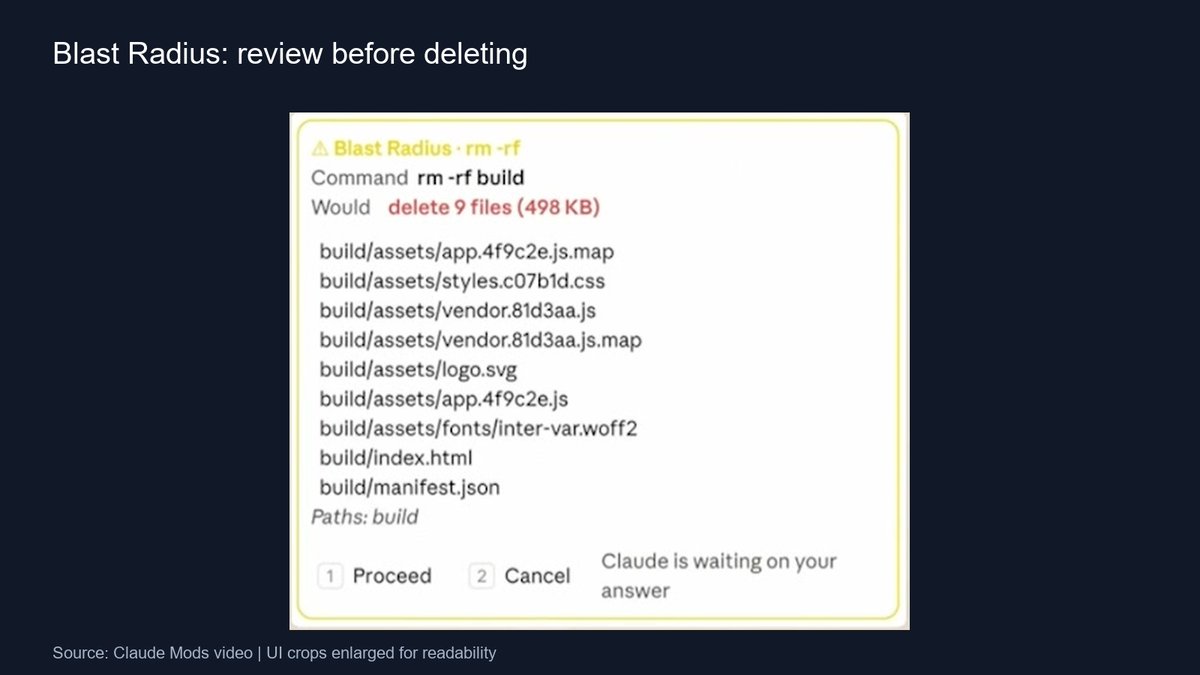
→ Blast Radius shows what an action would delete before you decide whether to proceed.
→ Replay Theater lets you step through edits and inspect the diffs.
Mods ship inside plugins, which you install with /plugin in the CLI or desktop app.
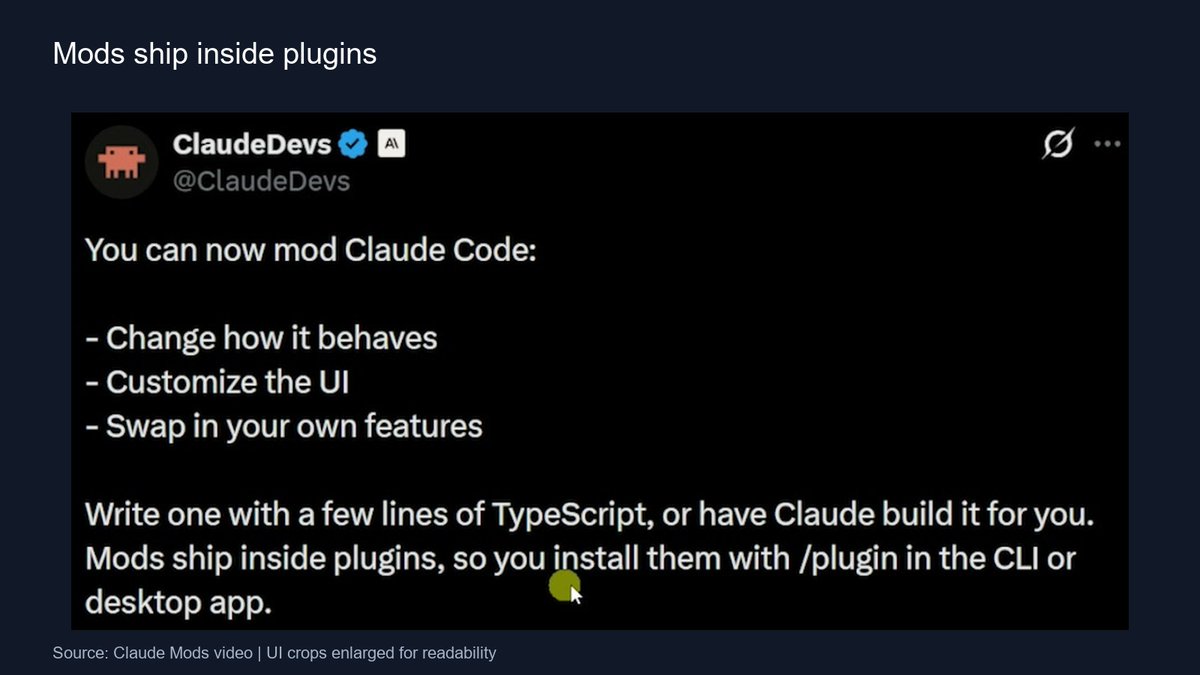
The mod itself is code, but you can describe the result you want in natural language and have Claude write it.
People are building all kinds of visual workflows and little pets. I made a pet too, but it isn't doing much for my work.
I wanted controls that fit things I already do regularly.
Next Steps: Suggestions After a Turn
One example shared by a Claude Code engineer is Next Steps.
At the end of a turn, it puts a small set of suggested actions into the UI. You can choose one or dismiss them.
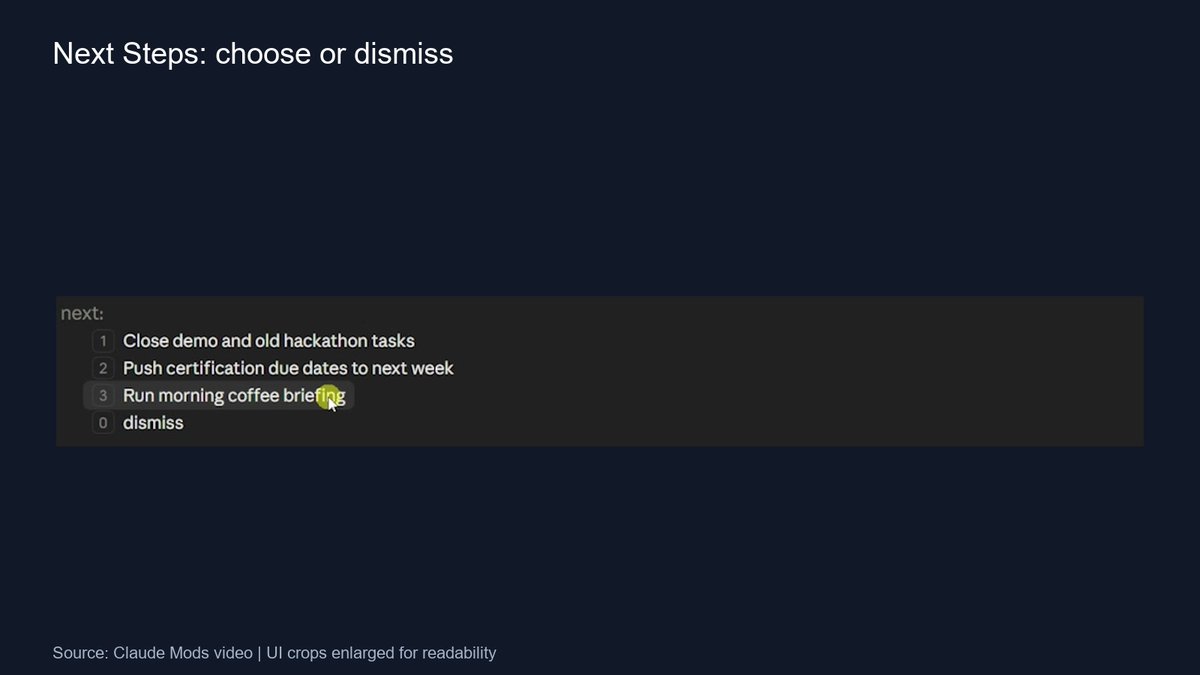
I tried it after asking what action items I had in ClickUp that day.
It suggested closing old demo and hackathon tasks, moving certification due dates, or running my morning coffee briefing.
I'm usually already driving my own day, so I'm not sure I need that extra guidance for every knowledge-work task.
I can see it being more useful while building an app: suggesting the next bug to fix, changes to merge, or a step that keeps the project moving.
To install an existing mod, I copied its setup instructions into Claude and asked it to set it up. In my example, the Next Steps UI was running in about 30 seconds.
Find Ideas in Your Session Logs
My first prompt asked Claude to read through my session logs and understand how I use it.
I asked it to look for repeated instructions, frequent tasks, and opportunities to help me stay organized, manage usage, or move through my work more easily.
Then I asked for the five best mods I could build for that workflow.
I didn't take every suggestion. It gave me a starting point, and I narrowed that down to the things I wanted to use.
You can do the same with a prompt like this:
Look through my session logs and identify the tasks I do often, the instructions I repeat, and the friction in my workflow. Suggest five useful Claude Code mods based on those patterns, and explain what each would do.
Review the suggestions before building anything. A busy new panel is only useful if it helps you do something you care about.
Cache Keeper: Usage and Session Handoffs
Cache Keeper puts context, usage limits, and cache information in a band above my prompt.
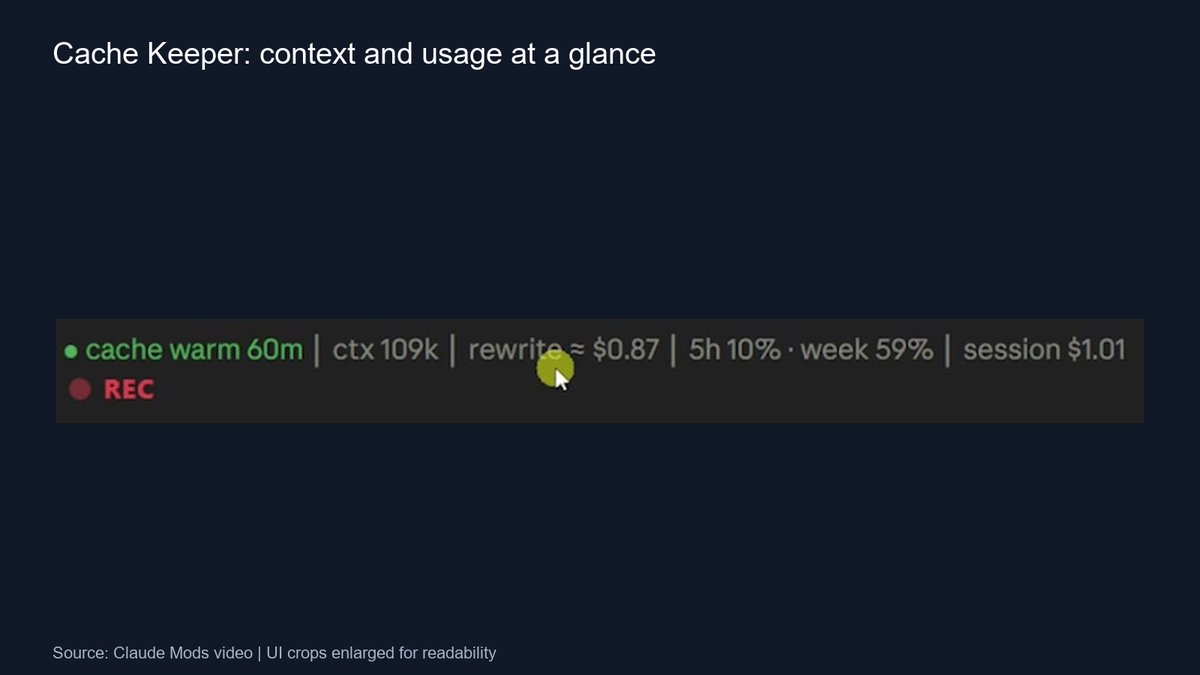
In the demo, the context was around 109,000 tokens. I could also see my five-hour and weekly usage limits, plus an estimate of what the session would cost under API billing.
That dollar figure is an API-equivalent estimate, rather than a bill for my subscription session.
The cache timer helps me see when the existing conversation may need to be processed again at a higher cost instead of reused from cache.
In the recording, the mod's timer went from roughly 57 minutes back to 60 after I sent another message.
Treat that as the timer shown by my mod, rather than a universal guarantee about every request's cache behavior.
When the timer gets close to expiry, the mod can show a notification. In my setup, that reminder appears with about five minutes left.
Then I can decide whether to send another prompt, compact the conversation, or hand the session off.
I also added buttons for my session-handoff workflow.
Before, I would run my handoff skill, copy the result, clear the chat, paste the handoff into the fresh conversation, and continue.
Now the first button runs the handoff, and Clear and Continue runs /clear and carries the handoff into the fresh conversation.
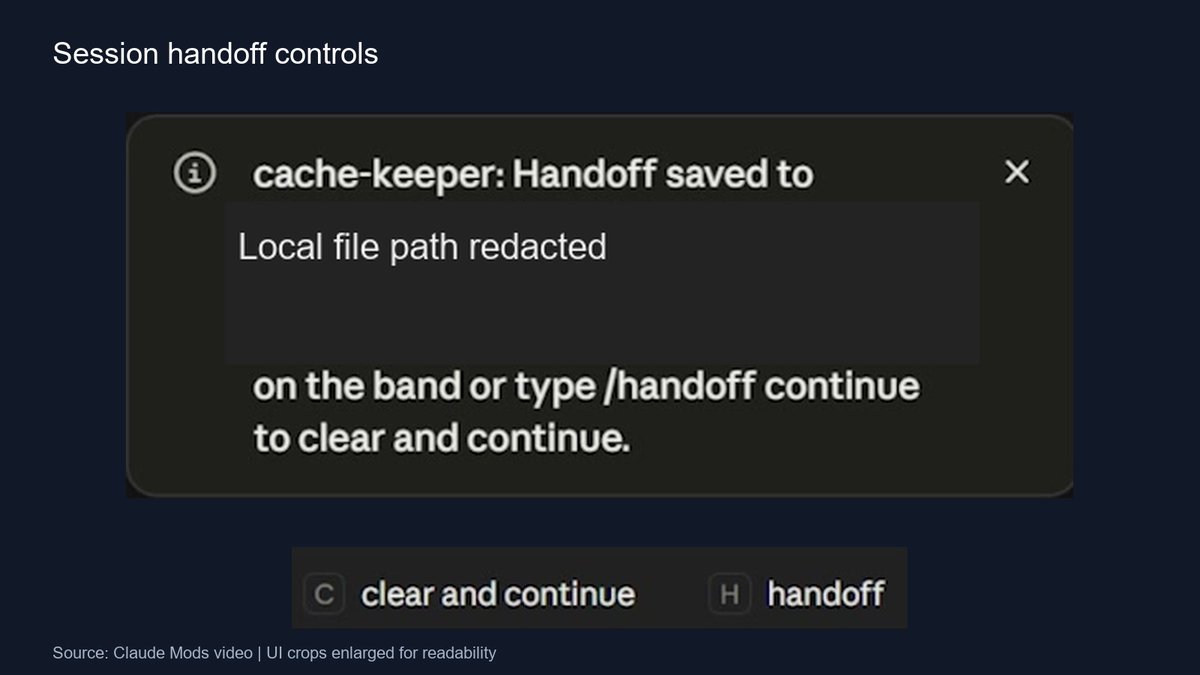
It's two clicks for something I was already doing manually.
I'm not claiming that saves a huge amount of time. I like that I can put my existing workflow right where I use it.
Recording Mode: Hide the Displayed Details
I record a lot of YouTube videos, and a screen share can show an email address or an internal financial detail before I notice it.
Recording Mode changes what appears on screen while I'm demonstrating Claude.
The recording indicator means that mode is active. It doesn't mean Claude is recording my screen.
In one example, I asked for the email address associated with my GitHub account. The response used placeholders because Recording Mode was on.
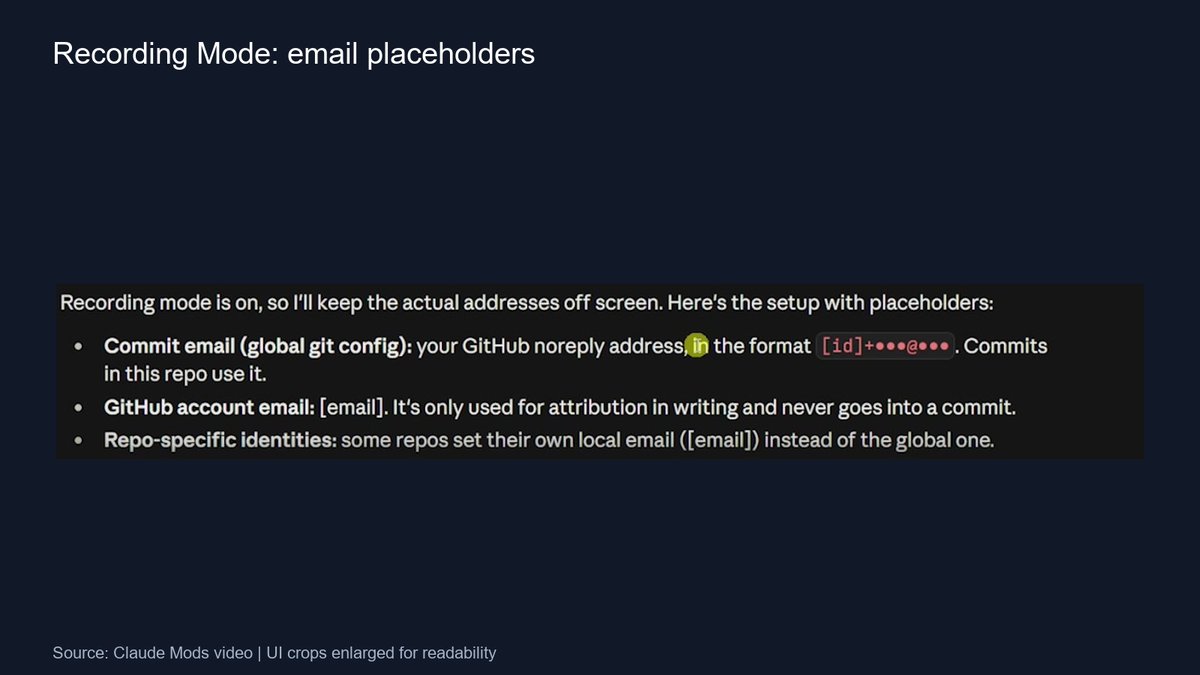
In another, I asked Claude to update a price in an HTML file from $29 to $39.
The chat hid the displayed values, but the HTML file still changed from $29 to $39.
Claude could work with the real information while the visible conversation was masked.
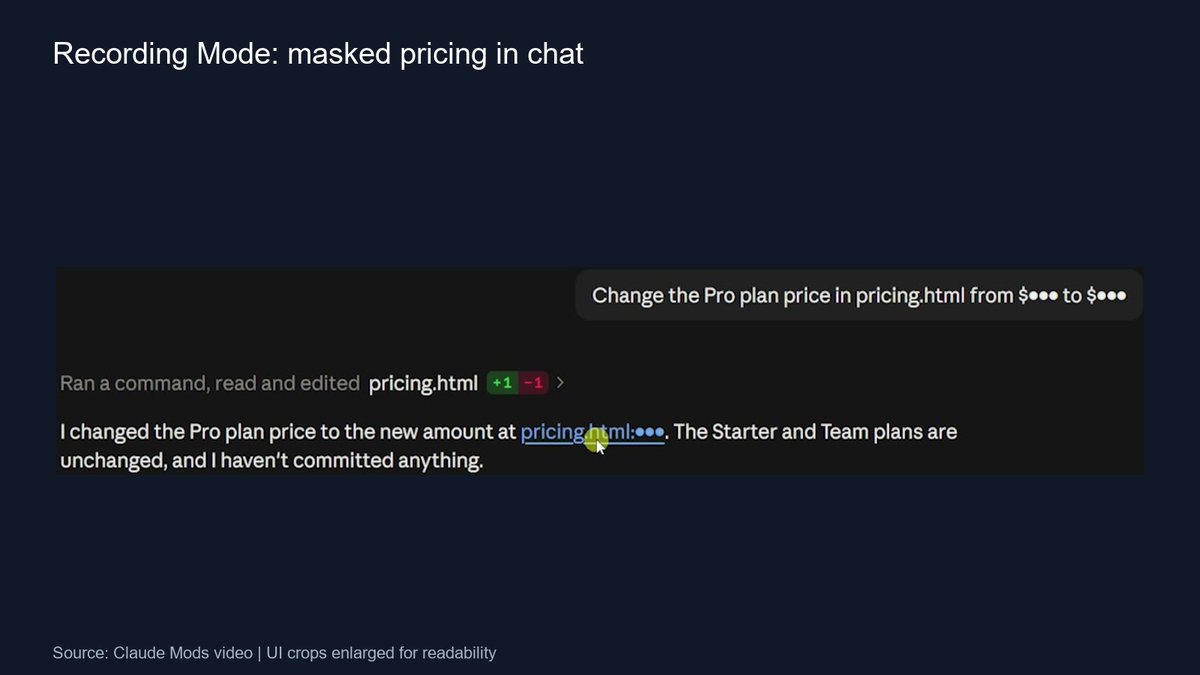
That's useful for a demo, but the source file can still contain the real values. I still need to be careful about which other windows I show.
Using the recording command with off reveals the text again. Turning the mode back on masks it again.
Once a mod is built, I ask Claude how to enable it, disable it, and use its controls. These mods live in local files and are managed through the plugin and its commands.
Goal Meter: Follow Work Across Chats
I run a lot of /goal prompts in the desktop app.
When several are running, I can lose track of the current task, how long a goal has been going, or which chat I should check.
Goal Meter adds a visible goal panel with the task list, elapsed time, and completion progress.
My first demo asked Claude to create an AIS carousel about Claude Code mods. It showed the planning phase, zero minutes elapsed, and a message saying it was waiting for Claude's task plan.
That goal finished almost immediately because the carousel had already been handled, so it wasn't a useful example of watching work progress.
I ran a second goal to analyze comments from my last 10 videos. This one created four tasks:
→ Find the comment-fetching tooling.
→ Pull comments from the last 10 videos.
→ Analyze them for common themes.
→ Report the single most important theme.
The panel showed those tasks being checked off as the work progressed.
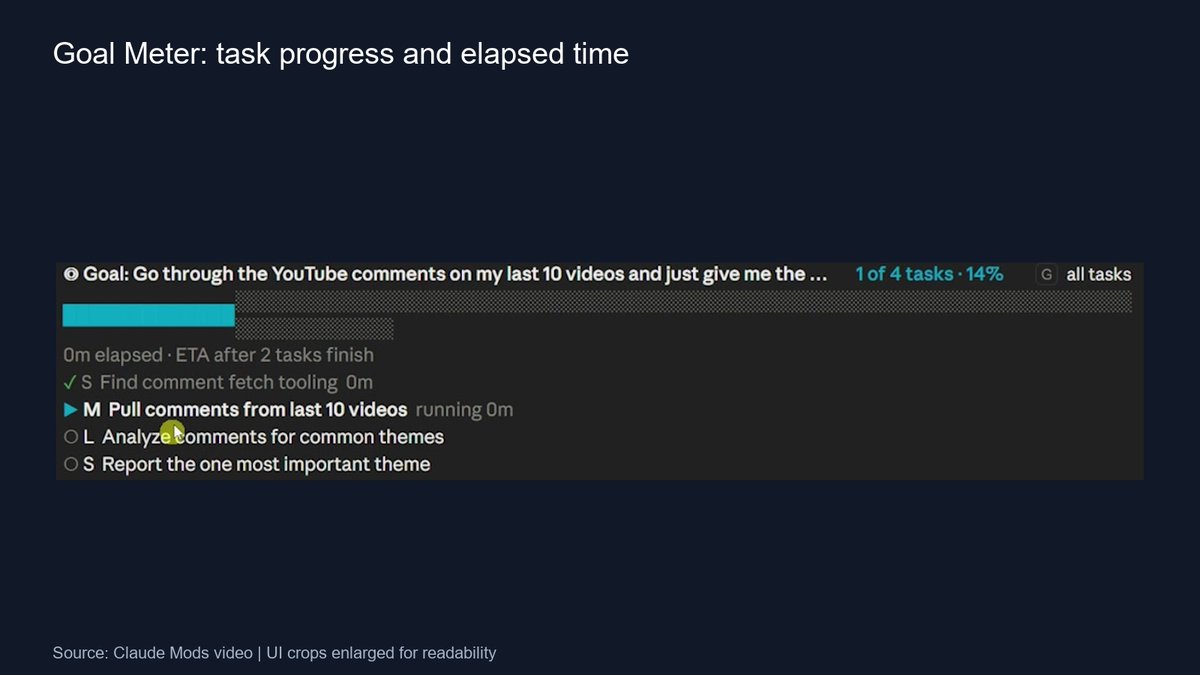
The G control opens the fuller task view, including goals in other chats.
That matters to my workflow because I'll sometimes have around 12 sessions running, and I want somewhere to check on them together.
Elapsed time and task completion give me visibility. They don't tell me exactly how long the remaining work will take.
Collision Guard: Ask Before Editing a Shared File
Multiple chats can also end up working on the same file.
Collision Guard checks before an edit, write, or notebook edit whether another chat recently touched that file. My setup uses a 30-minute window.
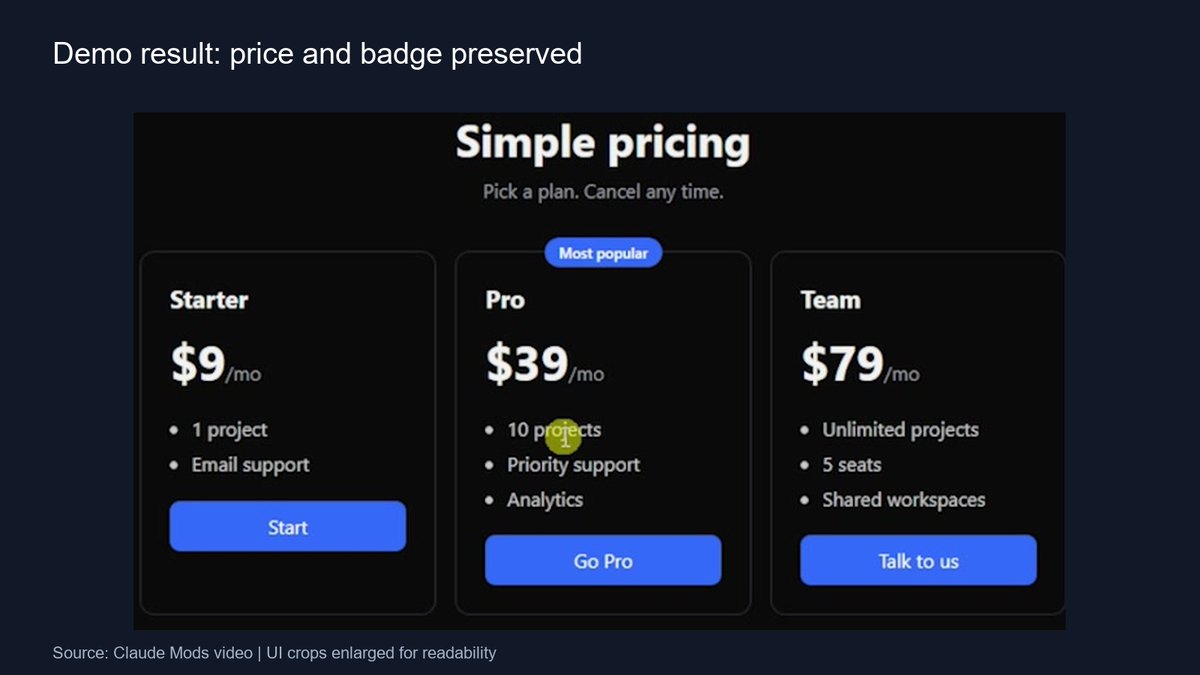
For the demo, I changed an HTML pricing page from $29 to $39 in one chat.
Then I opened another chat and asked it to add a Most Popular badge to the Pro plan.
Before the second edit, Collision Guard showed a warning that another open chat had just changed the file.
I could proceed, move to a worktree, cancel, or type another instruction.
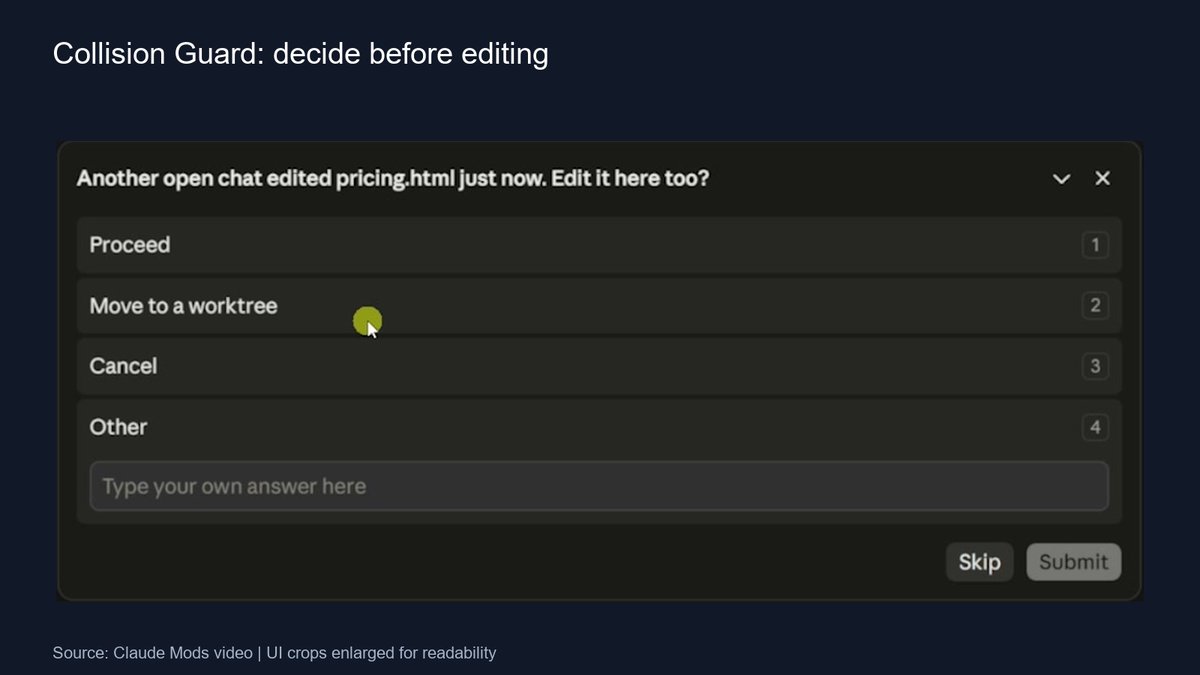
The warning also tells me how recently the file was touched. An edit from 20 minutes earlier would show that age instead of saying it happened just now.
This gives me a decision at the point where a second chat is about to change shared work.
If I want the chats to collaborate, I can proceed. If I want separate copies of the project, I can move to a worktree.
In the demo, I chose Proceed and the second chat updated the HTML file.
You could also express some of that workflow in a skill, a settings hook, or CLAUDE.md. I liked having the mod put the choice directly into the UI.
Get the Mods or Build Your Own
I'm sharing the mods through my free AI Automation Society Skool community.
Go to Classroom, open All YouTube Resources, and find the ZIP file or GitHub repository for this video.
You can also give Claude the transcript or describe your own version in plain English, then ask it to build the mod and explain how to use it.
I walk through the demos in the full video. Link in the first reply.
Start with something you already do regularly and ask Claude to make that part of the app easier to use.